Guide to importing an Excel price list
Every phase of the import explained step by step, with a screenshot for each one.
This guide walks through importing an Excel price list phase by phase, showing what each button does.
Open the import window
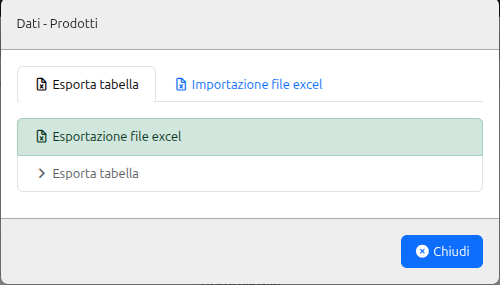
Go to Product > Product catalog and click the “Dati” (Data) icon in the top toolbar. The “Dati - Prodotti” (Data - Products) window opens with two tabs: “Esporta tabella” (Export table, to download the current catalog to Excel) and “Importazione file excel” (Excel file import). Click the latter to get started.
Upload the file
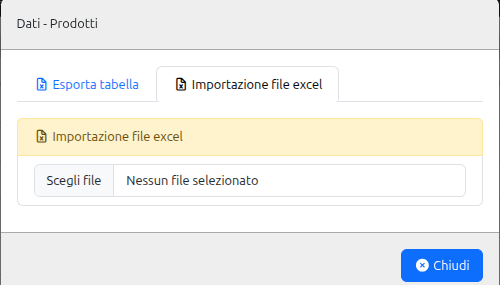
Click “Scegli file” (Choose file) and select the Excel price list you received from the winery.
Select the sheet
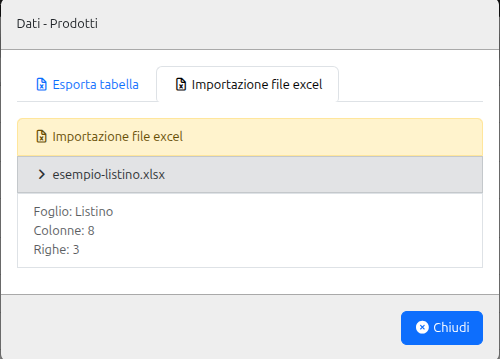
Qube reads the file and lists the sheets it found, with each one's column and row count. Click a sheet to open its mapping — if the file has a single sheet, that's the only row available.
Understand the fields to map
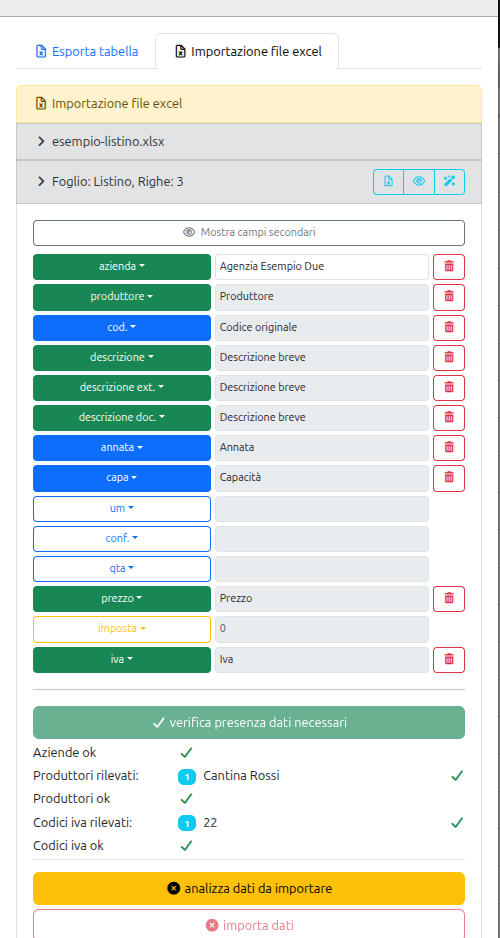
Every Qube product field has a colored button: red means required with no default value (you must always map it or set it manually), yellow means required but with a default value (price and tax default to 0 if left unmapped), blue means optional.
“Mostra/Nascondi campi secondari” (Show/Hide secondary fields) shows or hides the less common fields, like custom attributes or terms.
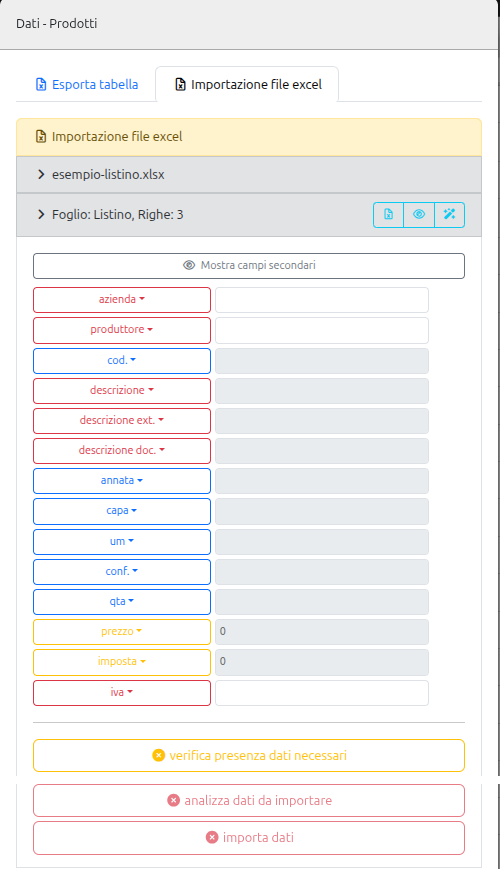
Map the columns
Click a field to choose which file column it corresponds to, or select “Valore manuale” (Manual value) to assign the same value to every row — useful, for example, if the file covers a single winery or agency.
The magic-wand icon (“Automappa campi”, Auto-map fields) tries to recognize columns on its own based on the header names: use it to speed things up, then fix by hand whatever it doesn't recognize.
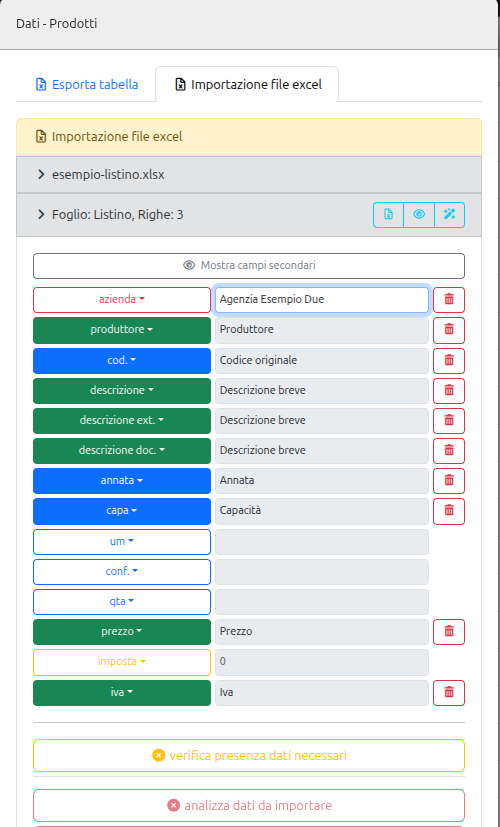
Check the preview (optional)
The eye icon (“Anteprima excel”, Excel preview) opens a panel with the sheet's raw data, useful to check that Qube read the rows and columns correctly before moving on.
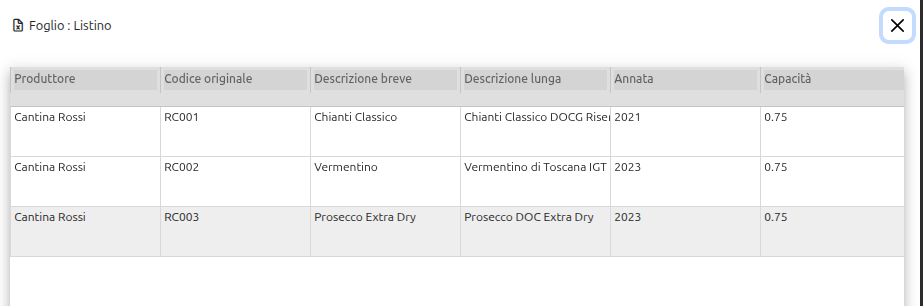
Verify the data
Click “verifica presenza dati necessari” (check required data): Qube checks that every required field is covered and matches agency, winery and VAT rate names against what's already registered.
If something's missing, it flags it — in this example, the winery “Cantina Rossi” isn't registered yet. The person icon next to the name creates the missing winery or agency right away (just the name: the details get filled in later from its own record screen).
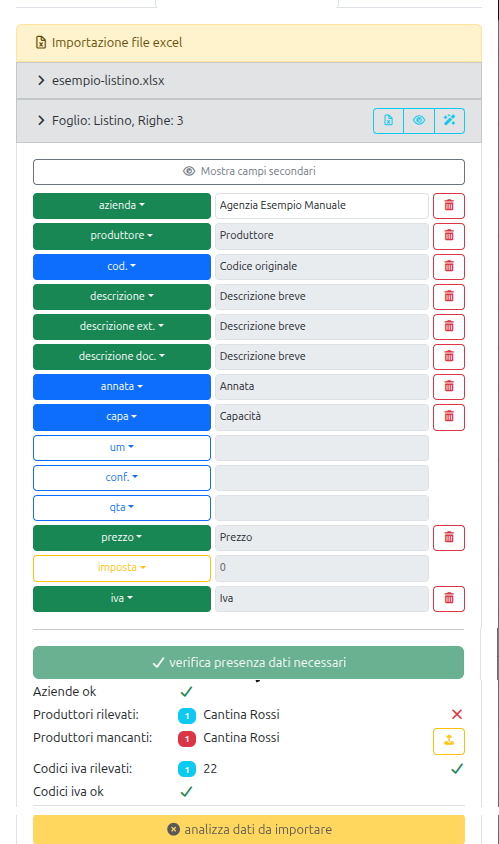
All set
Once agencies, wineries and VAT rates are all recognized, the checks turn green: you can move on to the next step.
Analyze the data
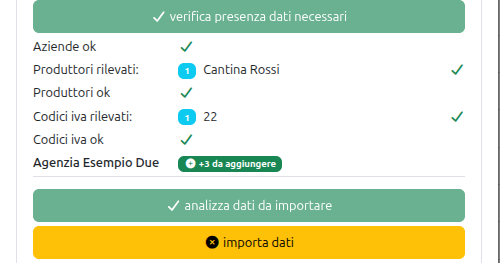
Click “analizza dati da importare” (analyze data to import): Qube validates row by row (missing values, invalid numbers, duplicate codes). If it finds blocking errors, you can fix the file and re-upload it, or use “salta righe non valide e analizza” (skip invalid rows and analyze) to proceed with only the correct rows.
If everything checks out, you'll see a summary per agency showing how many products will be added or updated — in this example, “+3 da aggiungere” (+3 to add) for a new agency with no catalog yet. If the agency already has a catalog and the file leaves some products out, the summary also shows an “N da disattivare” (N to deactivate) badge and a “Disattiva i prodotti a catalogo non presenti nel listino” (Deactivate catalog products not in the list) checkbox: tick it to mark those products as not sellable, or leave it unticked to leave them untouched.
Deactivate products no longer in the list
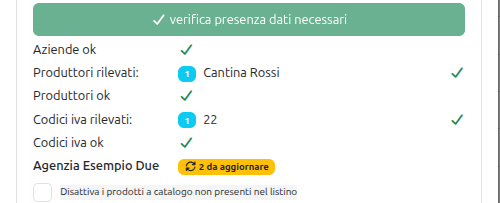
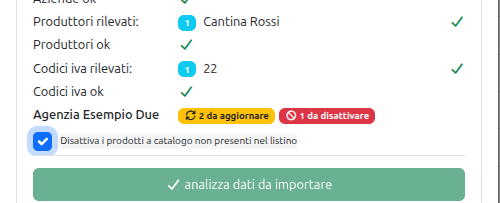
If you re-import a price list for an agency that already has a catalog, and the new file leaves some products out, the summary shows an “N da disattivare” (N to deactivate) badge and the “Disattiva i prodotti a catalogo non presenti nel listino” (Deactivate catalog products not in the list) checkbox appears below it — unticked by default, so those products stay untouched.
If you tick it, the “to deactivate” count updates and those products will be marked as not sellable (out of stock) once you confirm.
Confirm the import
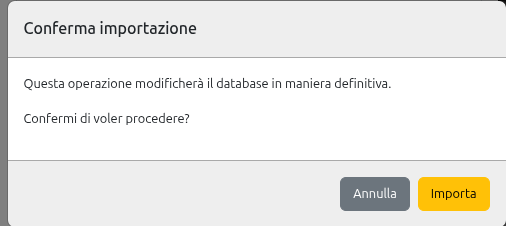
Click “importa dati” (import data): a confirmation window opens warning that the operation will permanently change the database. Click “Importa” (Import) to confirm, or “Annulla” (Cancel) to go back without changing anything. When it's done, you'll get a success message.